

How to Use ChatGPT:
the Practical Guide
Knowing how to use ChatGPT at its best can truly make a difference. What seems like a simple chatbot is actually capable, for example, of searching the web, analyzing documents, generating images, remembering our preferences, and even acting autonomously. In this guide we will explore its features to get the most out of this tool.
( by: Antonio Maria Guerra | date: 27/03/2026 )
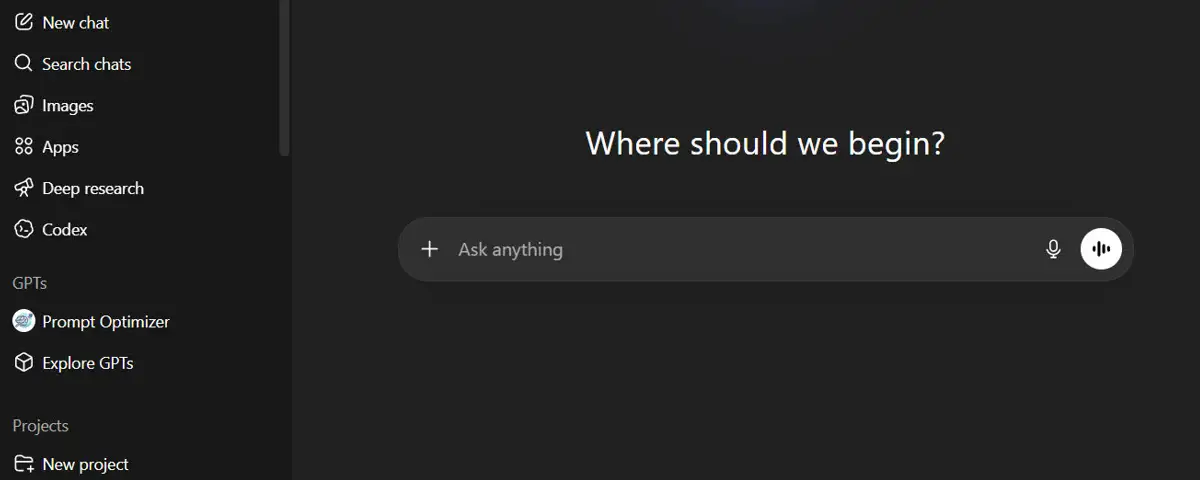
How to use ChatGPT: the workspace.
When you access ChatGPT, you find yourself in a workspace designed to be simple and immediate, even for first-time users. The interface is essentially divided into two sections: the central area, dominated by the input bar through which you interact with the model, and the sidebar, which brings together the main features, from image generation to GPTs, through to the management of Projects.

How to use ChatGPT: a guide built to last.
The interfaces of Artificial Intelligence-based tools evolve continuously: the reasons can be the introduction of new features, the enhancement of existing ones, or simply the attempt to make the user experience more intuitive. ChatGPT is no exception. That is why, in this guide, we will focus primarily on the purpose of these features and how to use them at their best: information that remains valid over time and useful for truly understanding the tool, regardless of any changes.
MAIN AREA

How to Use ChatGPT: the ‘Input Bar’.
The ‘input bar’ is the heart of interaction with ChatGPT: deceptively simple in appearance, it allows you to type your requests, known as ‘prompts’, effectively enabling you to have a dialogue with the model. A dedicated button, the ‘+’, allows you to attach reference files (*1) and access advanced features (*2). Two further dedicated buttons offer, respectively, the ability to dictate content by voice and to activate the voice conversation mode (*3). Everything ChatGPT can do starts here.
Notes
*1: Attaching files, whether text documents or images, allows ChatGPT to analyse them and use them as a basis for responding to our requests;
*2: Among the advanced features available we find, for example, image generation, advanced reasoning mode, in-depth web search, and much more;
*3: The two voice modes serve distinct purposes: the first simply allows you to dictate your prompt instead of typing it, the second to ‘talk’ to ChatGPT in a more natural and interactive way.

Prompt Engineering: because words matter.
The freedom to enter text is one of ChatGPT’s strengths, but it conceals a pitfall: it is easy to ask the wrong thing. This is where ‘prompt engineering’ comes in: a set of techniques useful for formulating relevant requests in order to obtain the desired result.

Input Bar: let’s explore the advanced features.
By pressing the ‘+’ button in the input bar, you can access a set of advanced features (continuously updated by OpenAI) that significantly expand ChatGPT’s capabilities, making it an increasingly versatile tool suited to very different tasks. It is worth knowing that some of these features are often also accessible from the sidebar: a deliberate redundancy, designed to make the user experience more fluid.
Let’s explore these features one by one:
- Add photos & files: this often underestimated feature allows you to attach text files and/or images to the conversation, making them available to ChatGPT. Once uploaded, the documents are analysed by the AI and then processed or used as a reference to generate entirely new ones, all based on the user’s requests. What we attach effectively becomes part of the conversation context, allowing the model to work with real content rather than abstract descriptions;
- Create image: by selecting this option, the input bar transforms into a dedicated space for image creation. Simply describe what you want to obtain, specifying, for example, subject, style, colours and atmosphere: ChatGPT will generate an image consistent with the instructions provided. It’s also possible to upload an existing image as a reference for creating something entirely new, or to request modifications to it, refining it progressively until the desired result is achieved.
- Thinking: this mode activates a deeper reasoning process on ChatGPT’s part, particularly useful when dealing with complex questions, articulated analyses or problems requiring multiple logical steps. In these cases the model ‘thinks’ longer before responding, evaluating the various options and verifying the consistency of its reasoning. All of this at the expense of speed, but with the undeniable advantage of greater precision and response quality.
- Deep research: this feature transforms ChatGPT into a fully-fledged research assistant, capable of autonomously analysing dozens of online sources, comparing their content and synthesising the results into a structured and detailed report. Unlike a simple web search, Deep research does not merely retrieve information: it analyses, cross-references and organises it, delivering in a matter of minutes work that would take a human researcher many hours.
- Shopping research: by selecting this option, ChatGPT opens a dedicated and interactive interface in which you can describe what you are looking for, specifying, for example, the characteristics of the desired product and your available budget. The model, once it has asked any clarifying questions, then searches across available sources and returns a personalised buyer’s guide with prices, specifications and comparisons between the most relevant options.

Input Bar: the Additional Features.
ChatGPT also provides an additional group of tools, each designed for a specific use. Here they are in detail:
Read more
- Web search: this feature allows ChatGPT to search for up-to-date information in real time on the web, overcoming the limitation of its training date. Useful whenever you need recent data, news or information that may have changed;
- Study and learn: this mode turns ChatGPT into an interactive tutor. Simply indicate the topic you want to study and your level of knowledge: instead of providing direct answers, the model asks questions, proposes exercises and explains concepts step by step, progressively adapting to the user’s level;
- Canvas: by selecting this option, the input bar transforms into a dedicated space for writing and code development. You can start from scratch, describing what you want to obtain, or upload an existing document or project and ask ChatGPT to modify, improve or expand it;
- Quizzes: this feature generates questions on a topic of your choice, allowing you to test and consolidate your knowledge quickly and interactively. Simply indicate the subject and, if desired, the difficulty level: ChatGPT will build a personalised quiz, providing immediate feedback on each answer.

SIDEBAR
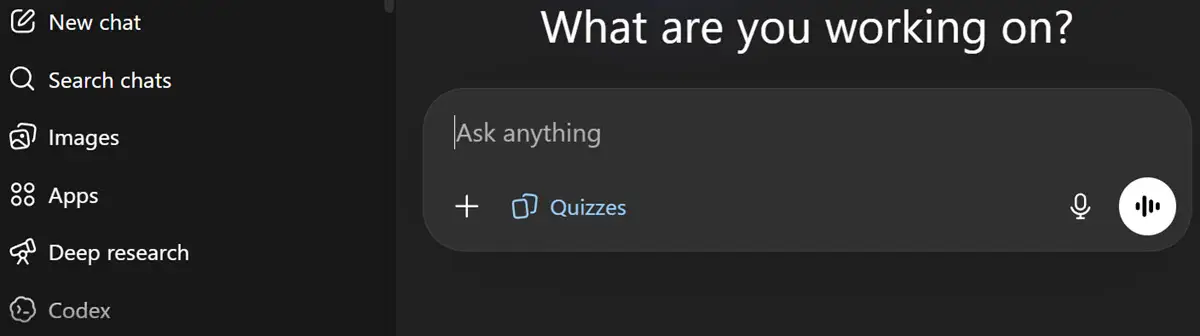
How to Use ChatGPT: the ‘Sidebar’.
The ChatGPT sidebar brings together navigation features and additional tools that complement the user experience of this LLM. Some of them, as we will see, are also accessible from the input bar: a deliberate redundancy, designed to make the workflow more fluid.
Let’s explore these features:
- ‘New chat’ and ‘Search chats’: the first feature allows you to start a new conversation, separate from the previous ones, useful whenever you want to address a different topic without the context of past chats influencing the model’s responses. The second makes it possible to search for keywords or topics within the history of past conversations, so as to quickly find a specific piece of information and the particular chat it belongs to.
- Images: this section of the sidebar is a dedicated space for creating and managing images, unlike the similarly named feature in the input bar which initiates generation directly in chat. It allows you to work on images previously generated with ChatGPT, on external images uploaded by the user, or to create entirely new images from scratch, with the support of preset filters and style suggestions to facilitate creative exploration.
- Apps: this feature allows you to connect ChatGPT to external tools, expanding its operational capabilities. Once an application is connected, you can interact with it directly in the chat. For example, thanks to the direct interaction between the LLM and Adobe Photoshop, it’s possible to edit an image by simply describing the desired result, without having to open the program or know its workings in detail.
- Deep research: this feature, also accessible from the input bar, transforms ChatGPT into a fully-fledged research assistant, capable of autonomously scanning dozens of online sources, comparing their content and synthesizing the results into a structured and detailed report. Unlike a simple web search, it does not merely retrieve information: it analyzes, cross-references and organizes it, delivering in minutes work that would take a human researcher many hours.

Codex: ChatGPT’s Coding Agent.
‘Codex’ is OpenAI’s Artificial Intelligence agent dedicated to software development. Connected to a GitHub repository, it can autonomously write code, fix bugs, run tests and propose changes, operating in a secure and isolated environment. Being a tool separate from ChatGPT rather than built into it, and aimed primarily at developers, its use will be covered in a dedicated guide.

GPTs: ChatGPT’s Specialized Versions.
GPTs are personalized and ‘specialized’ versions of ChatGPT, designed to perform specific tasks more effectively than the standard model. To this end, each one is configurable with dedicated instructions and reference documents: this allows the AI to respond consistently within a given context and purpose. GPTs can be created without any technical expertise, simply by entering descriptive text about the desired behavior and uploading files.
Read more
The same section that allows you to create GPTs also provides access to the GPT Store, which contains a large number of them, built by developers and companies from around the world. It is worth noting that a wide selection is available, divided into categories and pre-configured for a wide variety of purposes. Some practical examples: GPTs specialized in writing in a particular style, assistants that respond exclusively based on uploaded company documents, or tutors dedicated to specific subjects.

Projects: the ‘customized workspaces’.
‘Projects’ are dedicated workspaces within ChatGPT, designed to organize in a structured way everything related to a specific goal or activity. To this end, within each one it is possible to upload reference files and set custom instructions, so as to retain relevant context without having to repeat it in every new chat. Unlike GPTs, Projects do not modify the model’s behavior, but create an organized and focused environment around a specific task.
Read more
A practical example: someone working on a marketing campaign can create a dedicated Project, uploading briefs, analyses, and drafts, and setting instructions such as “always respond in a professional tone and focus on a young target audience.” ChatGPT will then use these elements as a consistent reference across all conversations. Finally, it’s worth noting that Projects can be shared with other users, making this feature useful for team collaboration as well.

Prompt Optimizer: the tool for perfect prompts.
The ‘Prompt Optimizer’ is a built-in tool in ChatGPT, part of the so-called ‘GPTs’, which automatically rewrites user prompts according to OpenAI’s official guidelines. Simply paste your text: the AI will remove ambiguities and contradictions, structuring the prompt with role, objective, context, and desired output format. The result is a measurable increase in response accuracy.
PRACTICAL TIPS

GPTs or Projects? How to choose.
GPTs and Projects are two only apparently similar features that actually serve very different purposes: it is therefore important to understand how each one, in its own way, can effectively help us.
Let’s start with GPTs, a sort of ‘mini-models’ of ChatGPT, ‘reprogrammed’ for specific purposes: they receive permanent instructions that modify their behavior, tone and capabilities, making them suited to a particular task, regardless of what you are working on.
Projects, on the other hand, do not change the way ChatGPT ‘thinks’, but make available to it, through the uploading of files and instructions by the user, an environment already ‘informed’ about the current activity, which acts as a permanent context.
In practice:
- It’s worth choosing a GPT when you need an assistant that is particularly well-versed in a subject, to be used on a recurring basis regardless of the project you are working on;
- It’s worth opting for a Project instead when working on something specific and contained, and you want ChatGPT to continuously keep the context of that work in mind.

ChatGPT Memory and its practical value.
ChatGPT is able to retain relevant information between sessions, such as the field the user works in, their preferred writing style, or the projects they are working on. The model’s memory operates on two levels: data the user explicitly asks ChatGPT to remember, and information gathered automatically in the course of conversations. Enabled by default, it can be turned off at any time, either entirely or selectively (*1). The practical result is that, over time, ChatGPT becomes an increasingly well-calibrated tool for one’s needs, without having to re-explain the same things at the start of every new chat.
Note
*1: You have full control over what ChatGPT remembers: it’s possible to view accumulated memories, delete specific ones, or clear the entire memory at once. For completely isolated conversations, a “Temporary Chat” mode is also available.

Thinking or Deep Research: how to choose.
‘Thinking’ and ‘Deep Research’ are two complementary features, each designed for a specific type of need: knowing when to use one or the other makes a concrete difference in the quality of results. ‘Thinking’ activates a deeper reasoning process based on what the model already knows: it is the right choice when tackling a complex problem, an articulated analysis, or a question that requires multiple logical steps. ‘Deep Research’ does something distinct: it autonomously accesses dozens of online sources, compares their content, and returns a detailed, documented report.
In practice:
- It’s worth using ‘Thinking’ when deeper reasoning on a topic is needed, without requiring updated or external information;
- It’s worth using ‘Deep Research’ when looking for recent data, exploring a topic thoroughly, or when an analysis based on verifiable sources is required (*1).
Note
*1: Deep Research is subject to a monthly usage limit, which varies depending on the subscription plan.

How to use ChatGPT: the essential verification of information.
ChatGPT, like any other LLM, generates responses that, despite appearing complete and authoritative, can sometimes contain inaccurate or even entirely fabricated data. Although this phenomenon, known as ‘hallucination’, tends to diminish as AI evolves, it is always wise to stay alert: as they say, ‘the devil is in the details’. To be clear, the model does not deliberately mislead, but being structured to favor the most probable options, it can present uncertain content… and do so with the same confident tone it uses when it is actually right. It should be noted that this kind of issue occurs more frequently in relation to niche topics, statistics, bibliographic citations and specific references. The most effective practical approach to avoid embarrassing slip-ups is to submit ChatGPT’s output to another trusted LLM (*1), so as to cross-check the results and identify any inconsistencies.
Treating AI output as a valuable starting point rather than ‘gospel truth’ is a golden rule that should always be followed.
Note
*1: Preferably using Deep Research, which cites the sources it draws from.

ChatGPT: When it’s the right choice.
Among the main LLMs, ChatGPT stands out in several specific areas. It is the most suitable tool when working on textual content that requires a natural and engaging tone of voice. Additionally, its image generation capability is among the most precise in the field, with an ability to follow detailed instructions that competitors struggle to match. It is also particularly effective in mixed workflows, where writing, analysis, and research alternate within the same session, and in voice conversation, which is more fluid and natural than that of other models. All that said, the choice between one model and another remains largely a matter of personal preference and working style.
Copyright information.
The images on this page were created using generative Artificial Intelligence tools.
The images of the ChatGPT interface included in this article are used for editorial and educational purposes only. ChatGPT is a registered trademark of OpenAI, with which IntelliGuide.it has no affiliation.